Connect NutriFit to ChatGPT in a few minutes
Add the secure NutriFit MCP server, sign in to your profile, and work with approved wellness data directly in ChatGPT conversations.
This opens the official Plugins area on chatgpt.com. The connection must be created on the ChatGPT website.
Public guide
Read this page without signing in
You do not need a NutriFit account or authorization to read this guide. Sign-in is required only when you connect private capabilities through OAuth.
Before you start
What you need to connect
Prepare your ChatGPT and NutriFit accounts. The entire process runs in your browser and normally takes only a few minutes.
- 01
Paid ChatGPT plan
A paid ChatGPT plan with access to Plugins and Developer mode is required.
- 02
Developer mode
It lets you add an MCP server you trust through a secure HTTPS endpoint.
- 03
NutriFit profile
No profile is needed to read this page. Sign in or register only after the OAuth connection starts.
Use only the official NutriFit MCP endpoint
Copy the full address, including /mcp. Do not add spaces, extra parameters, or a different domain.
https://mcp.nutrifit.health/mcpNever enter your NutriFit password in ChatGPT. Sign-in happens on a separate secure NutriFit page after OAuth starts.
Step-by-step guide
How to add NutriFit to ChatGPT
Some section names may change slightly as ChatGPT is updated, but the connection sequence remains the same.
Step 01
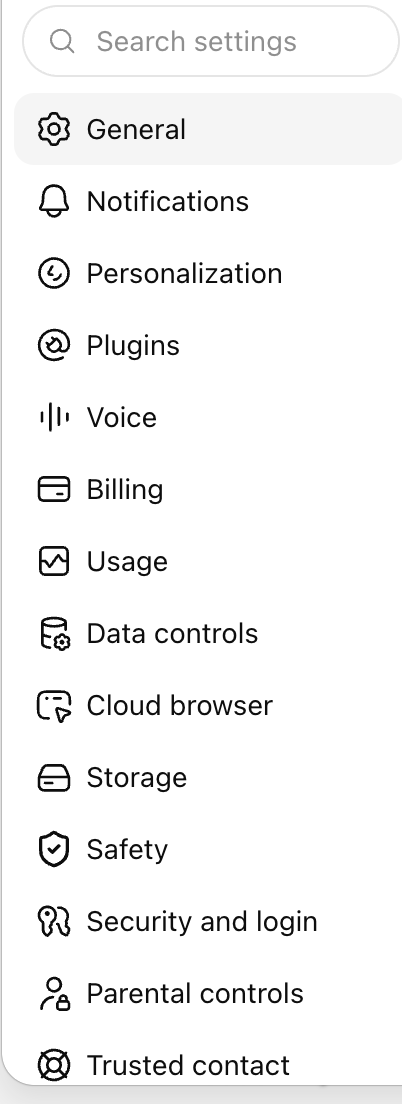
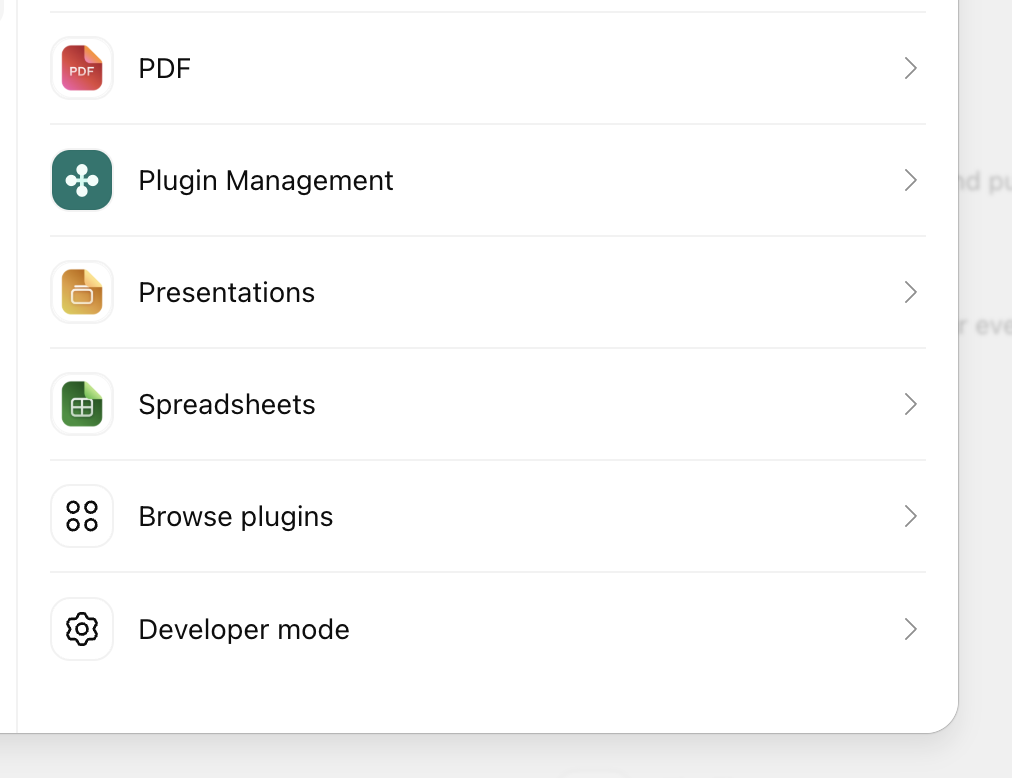
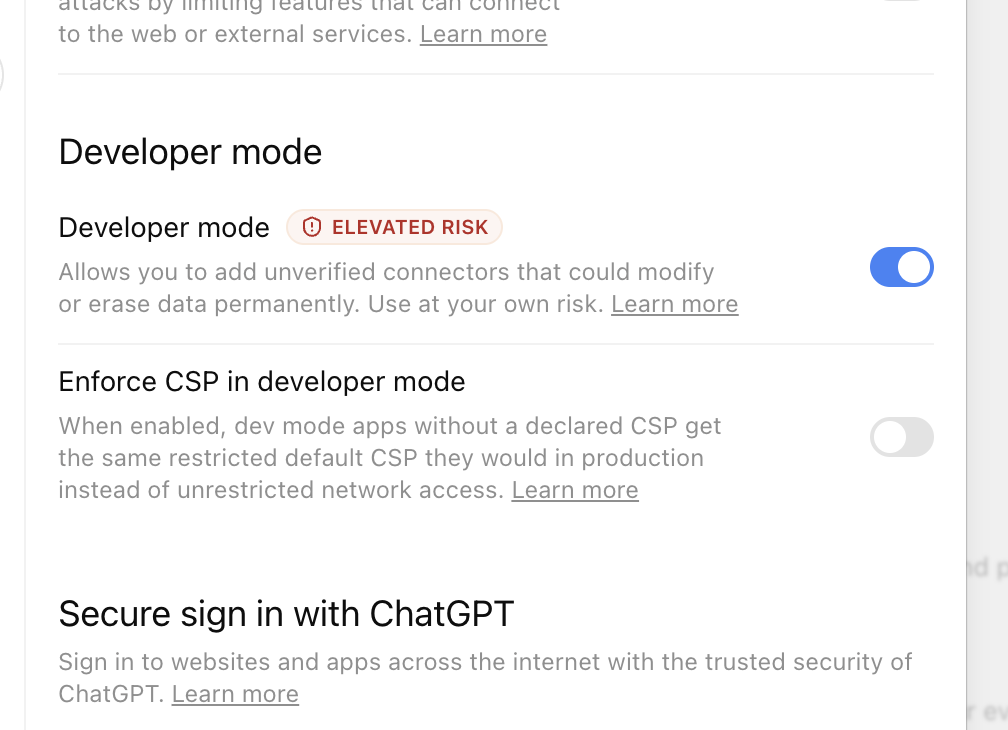
Enable Developer mode in ChatGPT settings
Open Settings on chatgpt.com and find Developer mode. Depending on the current interface, it may appear under Plugins or Security and login. Turn it on and acknowledge the warning.
English interface01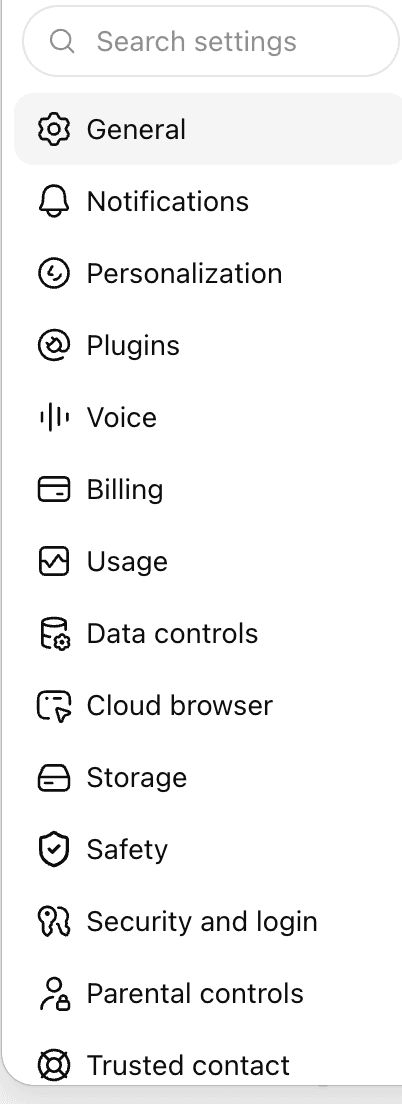
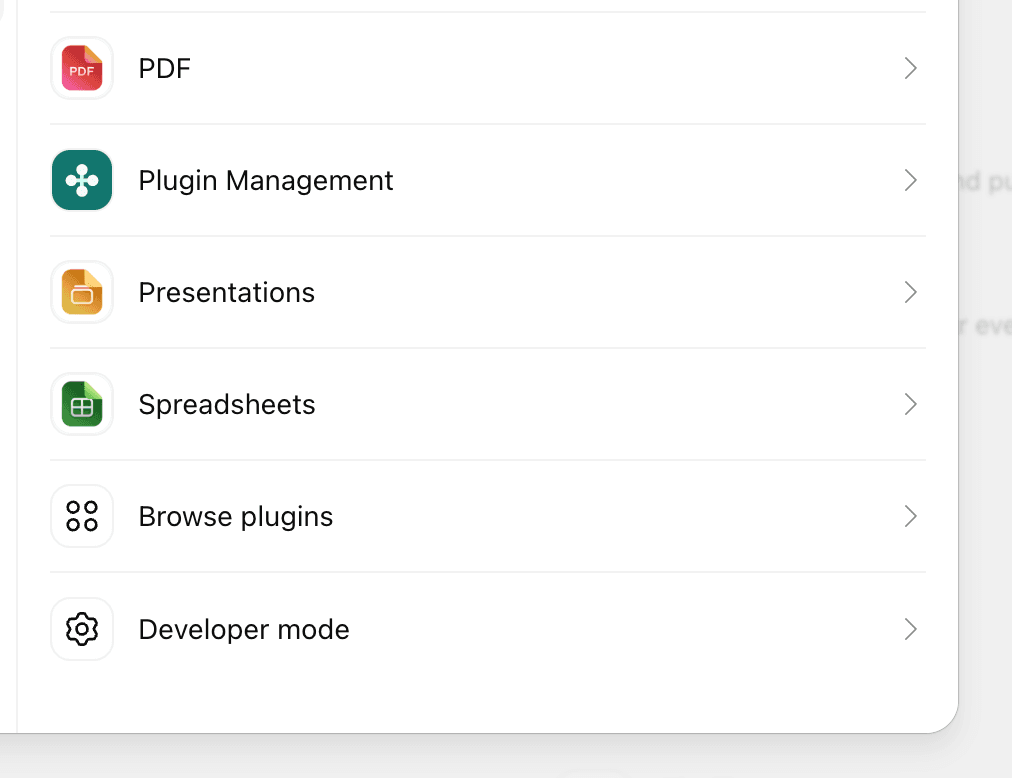
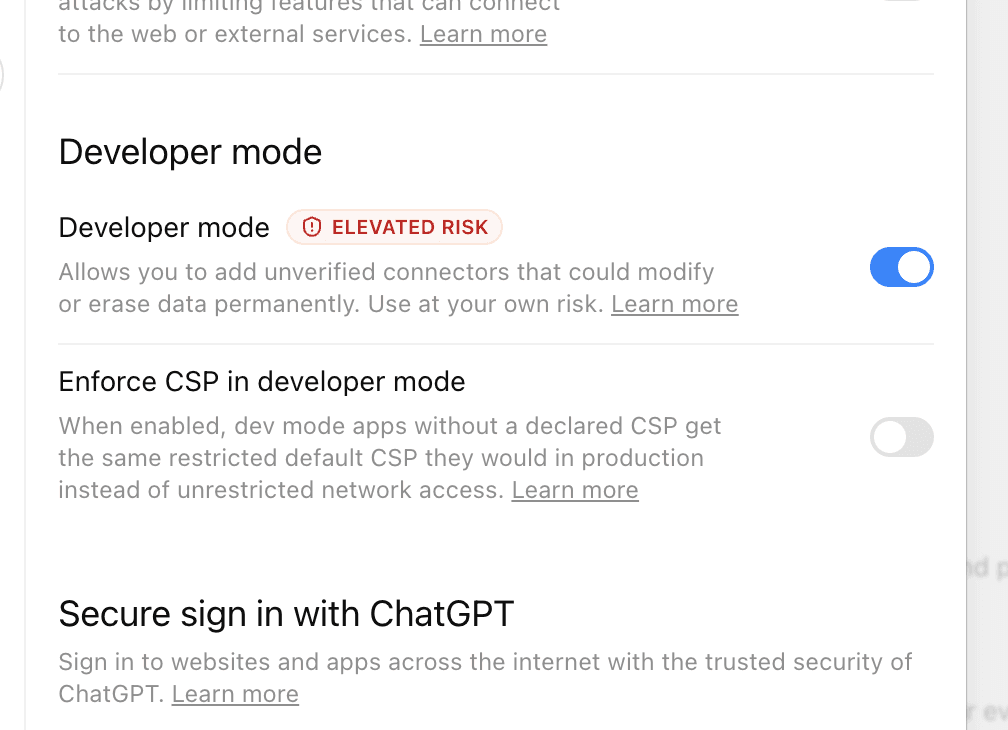
Select a thumbnail to open the full-size screenshot.
Step 02
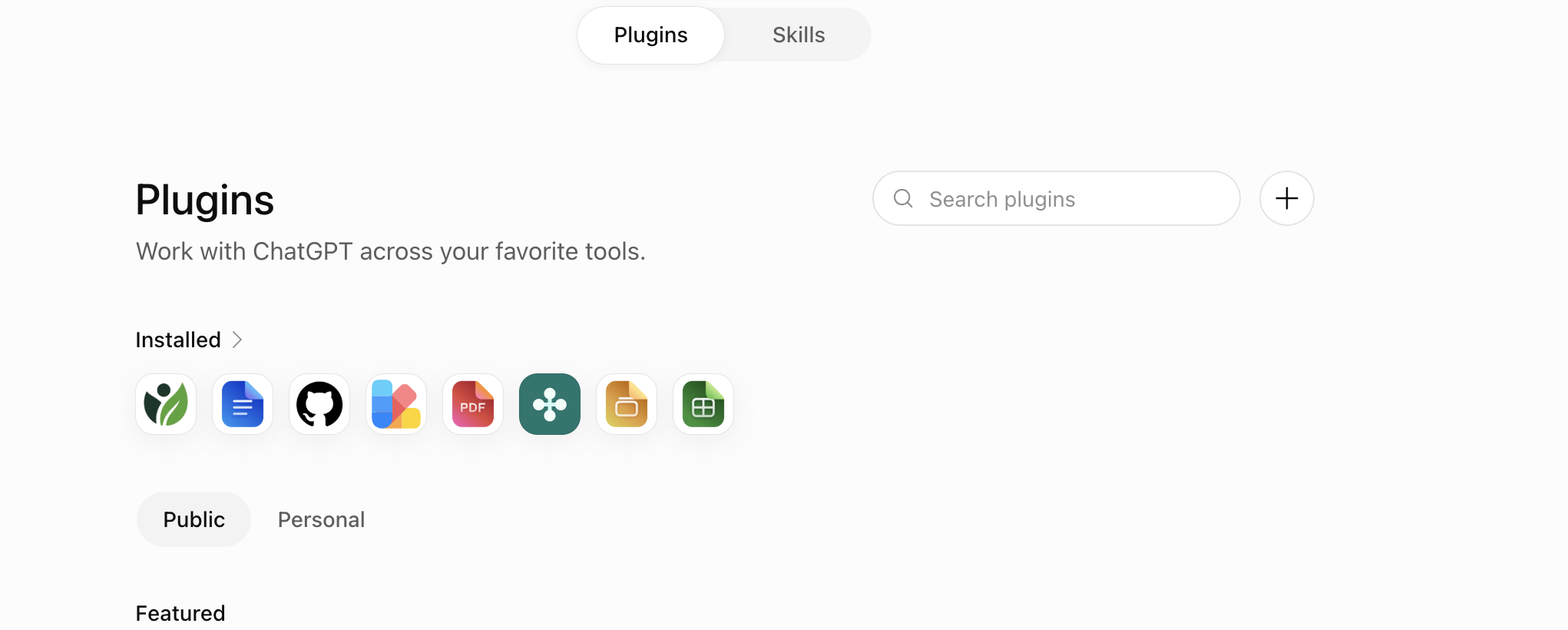
Open Plugins and select the plus button
Go to https://chatgpt.com/plugins. On the Plugins page, select the round plus button to create a new connection.
English interface02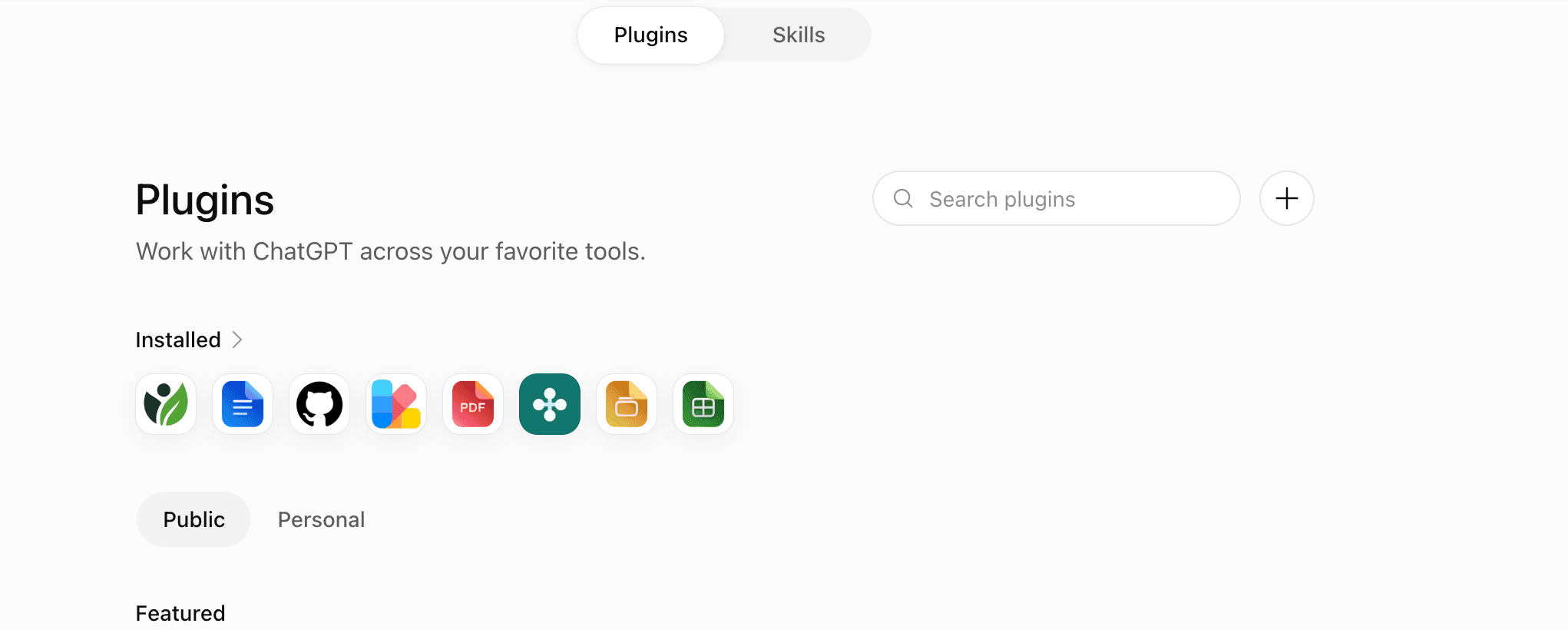
Select a thumbnail to open the full-size screenshot.
Step 03
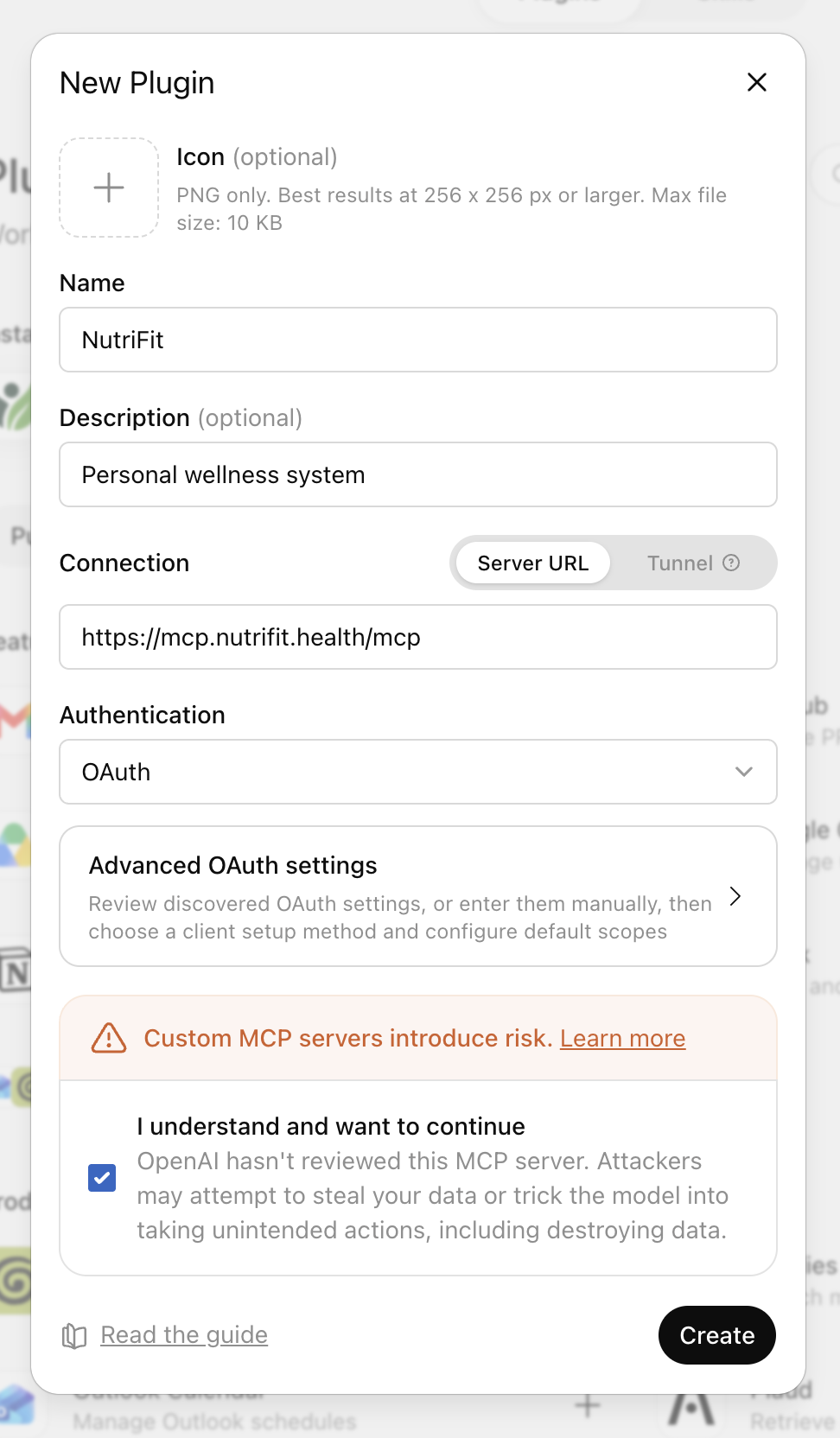
Add the official NutriFit server
Enter NutriFit as the name, Personal wellness system as the description, choose Server URL, paste the endpoint below, and select OAuth. Review the warning and create the connection.
https://mcp.nutrifit.health/mcpOAuthEnglish interface03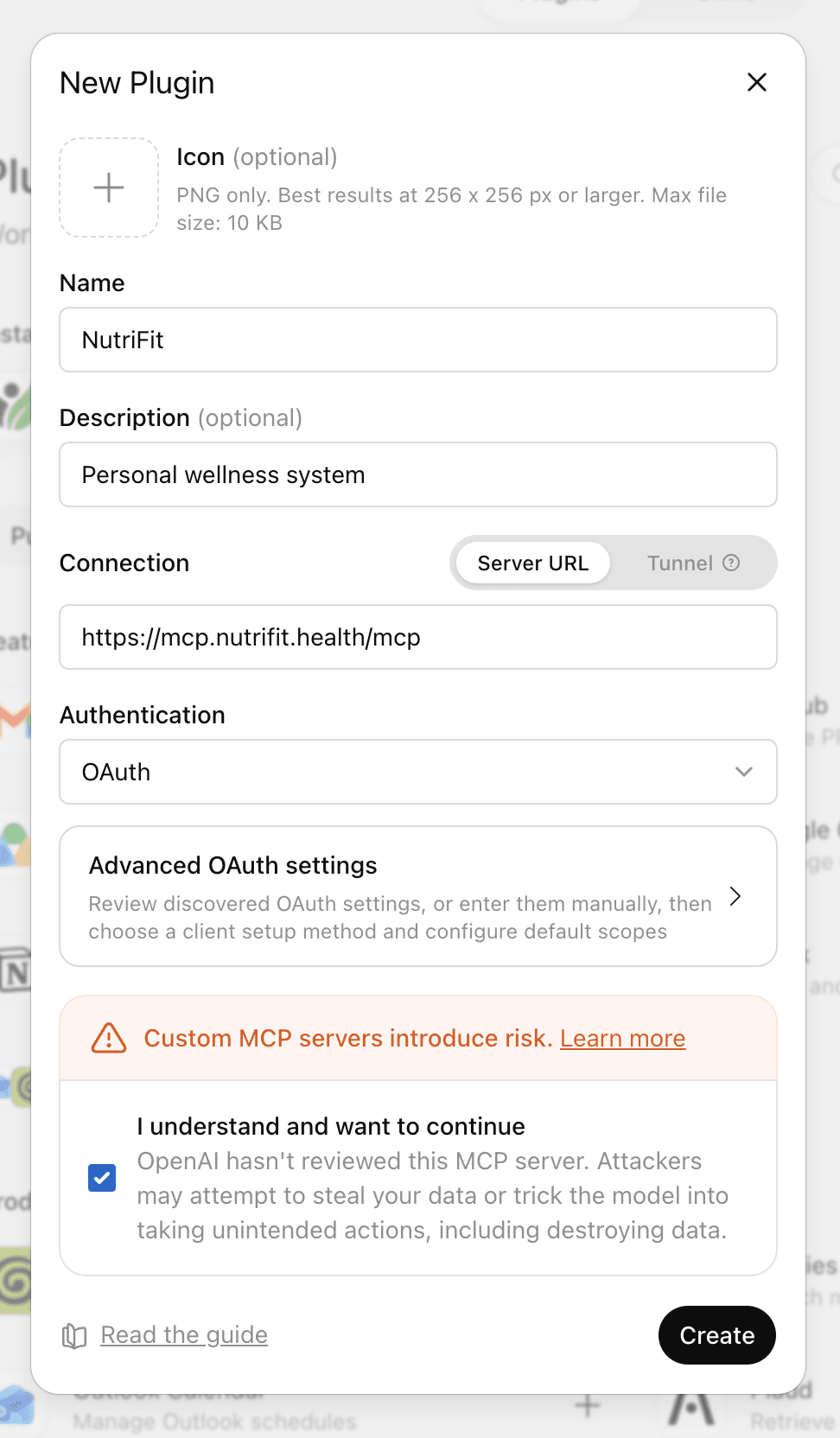
Select a thumbnail to open the full-size screenshot.
Step 04
Start the secure connection
ChatGPT displays a NutriFit connection card. Select Sign in through NutriFit to open the secure OAuth page; your password is not shared with ChatGPT.
English interface04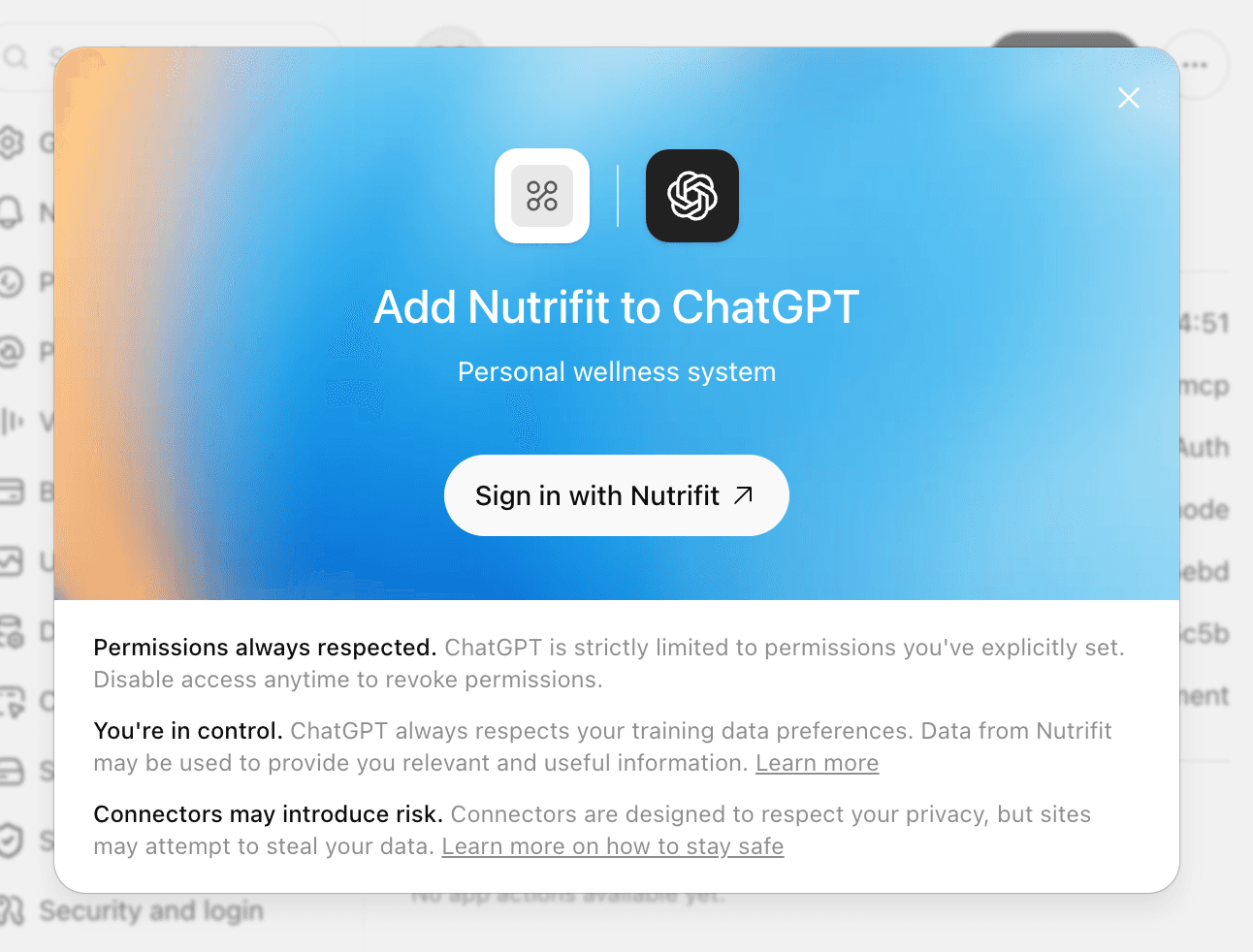
Select a thumbnail to open the full-size screenshot.
Step 05
Sign in or create a NutriFit profile
Use your existing profile credentials. If you do not have an account yet, choose registration, create your profile, and return to the connection flow.
English interface05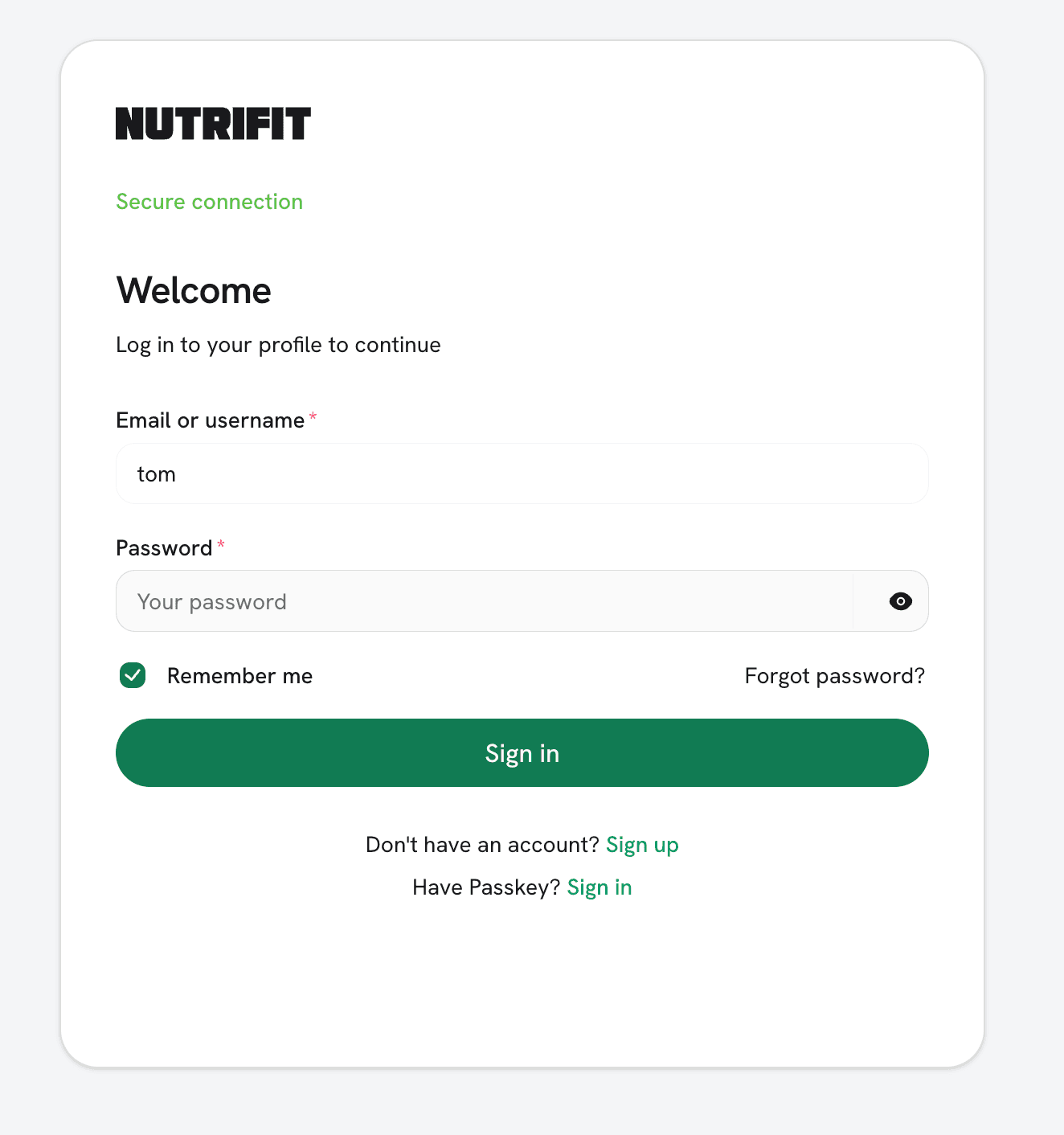
Select a thumbnail to open the full-size screenshot.
Step 06
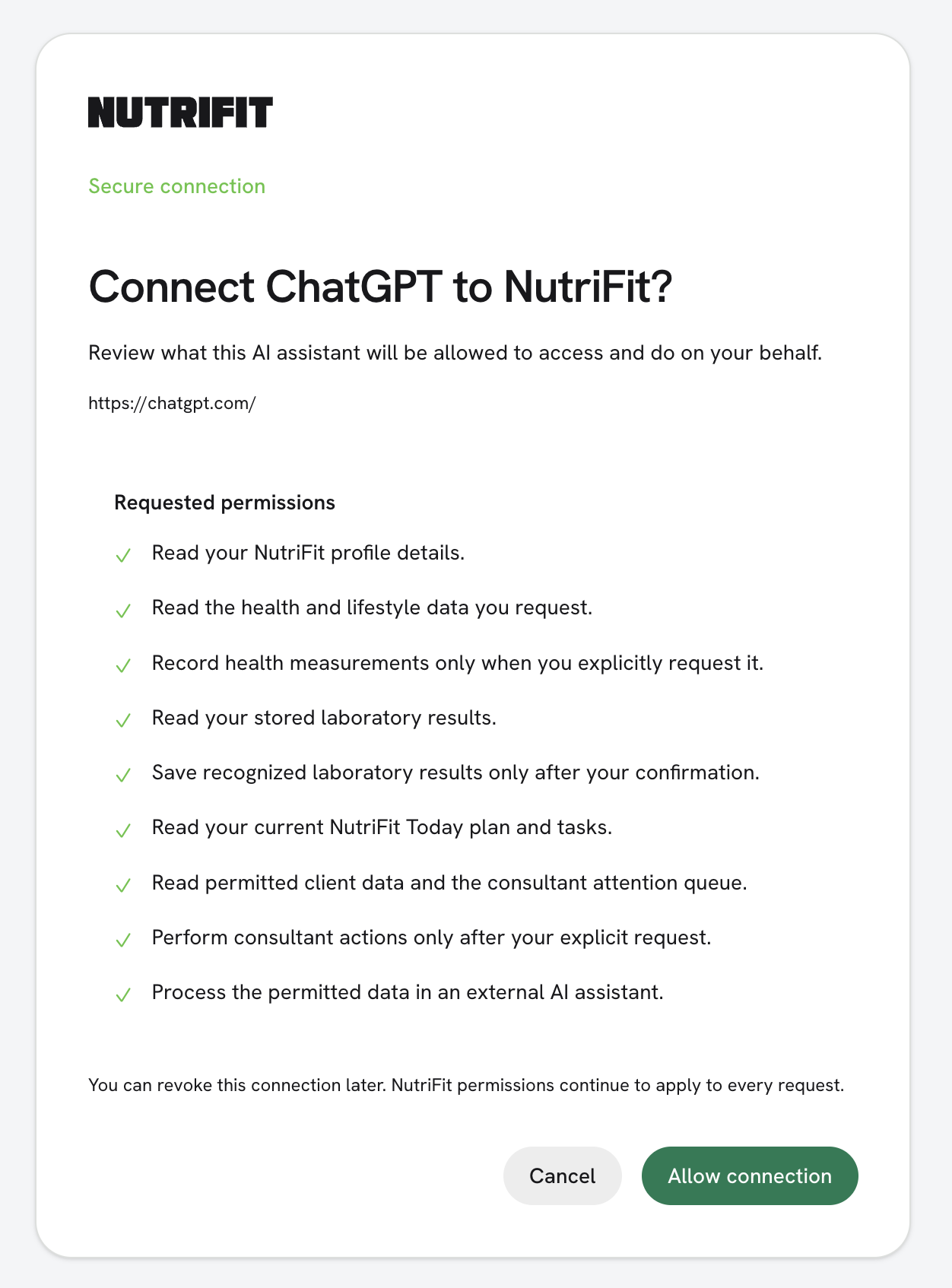
Review permissions and approve access
Read the data and action list carefully. NutriFit checks permissions on every request. If everything looks right, approve the connection.
English interface06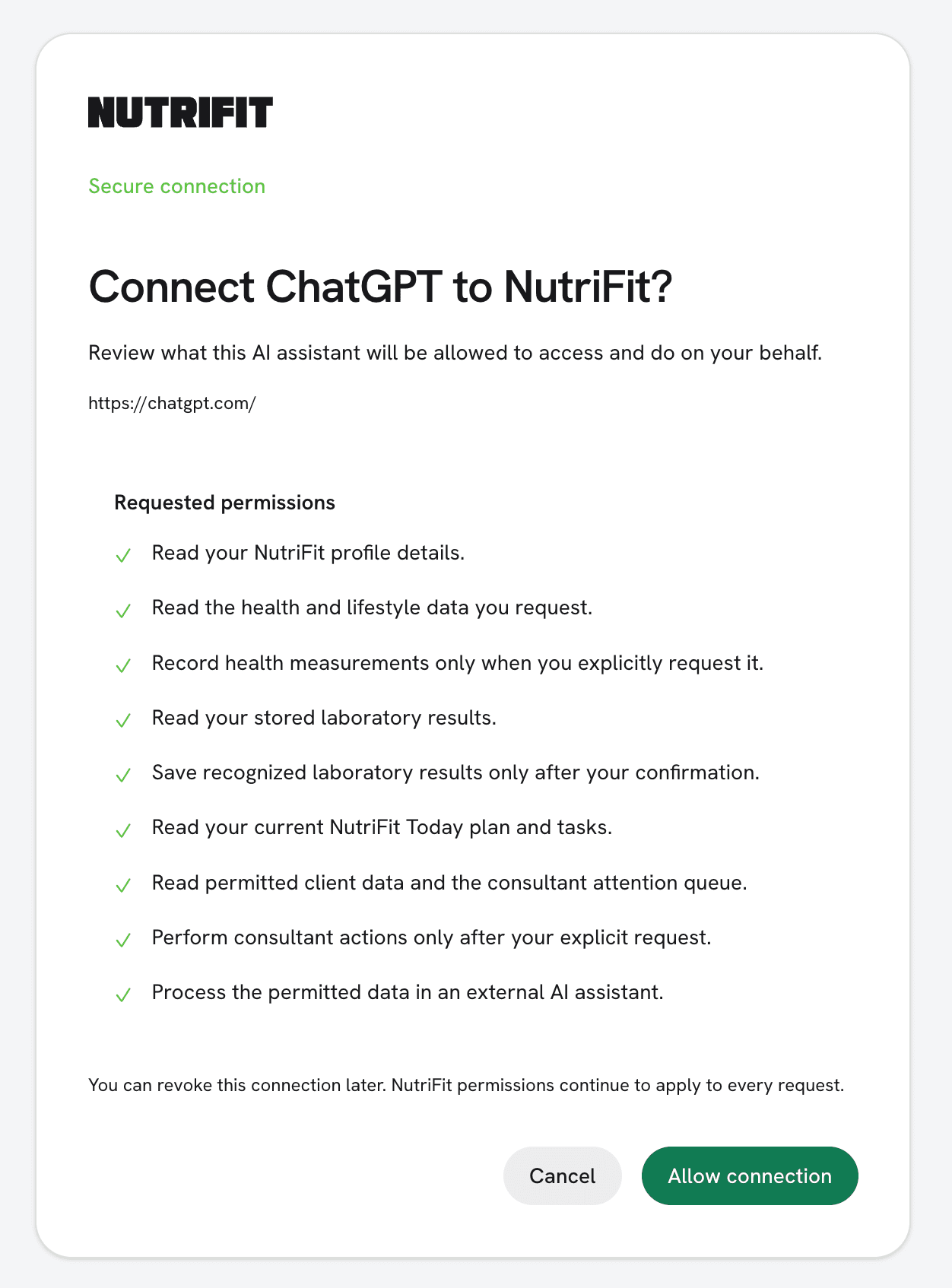
Select a thumbnail to open the full-size screenshot.
Step 07
Add NutriFit to a new conversation
Start a new ChatGPT conversation, open the tools menu, and select NutriFit. You can now ask ChatGPT to use the available NutriFit capabilities.
ChatGPT · localized previewStep 7MCPUse NutriFit in this conversation
NutriFit is connected and ready.


Ready to connect?
Open Plugins and add NutriFit
Use the official server address, review the permissions, and complete OAuth sign-in. NutriFit will then appear in your ChatGPT tools.